_



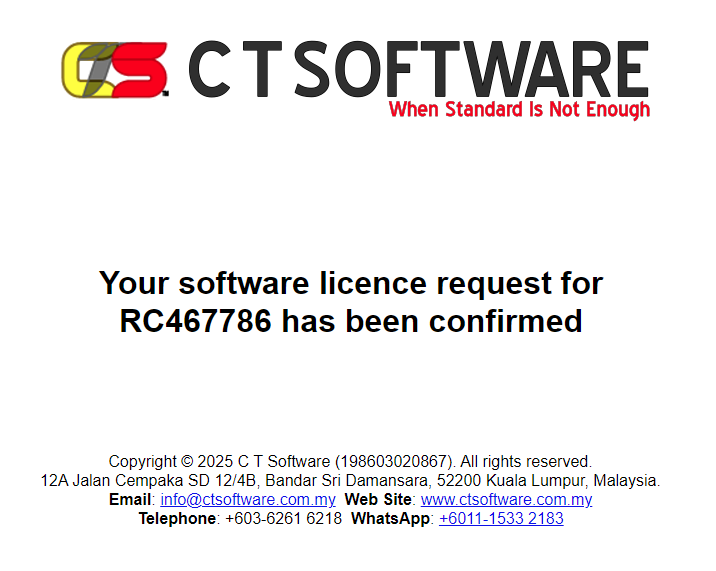
Before you can use software which you have purchased a licence for or register for new company, you need to register your details at bit.ly/ctsregn. After a short while, the following screen will be shown:-
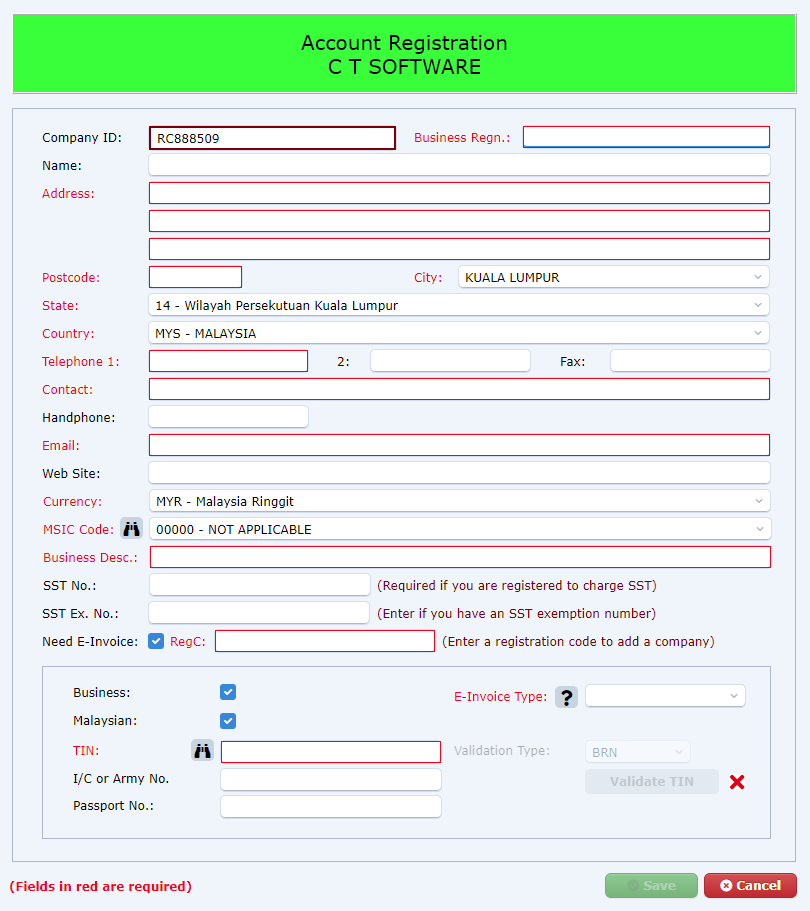
Fill in your company's details. Make sure that the fields in red are entered. If any fields are not valid, the Save button will be disabled.
Notes:
Enter the registration code in the "RegC" field. CLAM will verify that the code is valid. One of the following will cause the validation to fail:-
If the validation fails, the entire field will have a red border. Hover your mouse over the field and you can see the error message. Inform the provider of the registration code for resolution if you are adding a company name. Contact us otherwise.
When the details have been entered, click the Validate TIN if e-invoices are needed. Otherwise, do not select "Need E-Invoice". Click the Save button. If there are any issues with the e-invoice fields (if e-invoice is needed), you will be informed accordingly.
Otherwise, confirm that the details are correct. CLAM will email the details to CTS and copy it to you.
IMPORTANT: In your email, there is a link to confirm your registration request. Click it and you will see something like the following:-